Tutorial: Sliders on the Studio Wall
The Sliders
Above the upper left corner of the studio wall, you'll find three "sliders." These are like on and off switches that control part of the studio wall canvas itself.

- Show Grid turns the light grey lines on the studio wall canvas on and off.
- Snap to Grid makes the items you add to the studio wall align with the lines on the grid (even if they're not displaying via the Show Grid slider).
-
Adornments controls which adornments display on your studio wall or not. When you click it a dropdown appears as shown below.
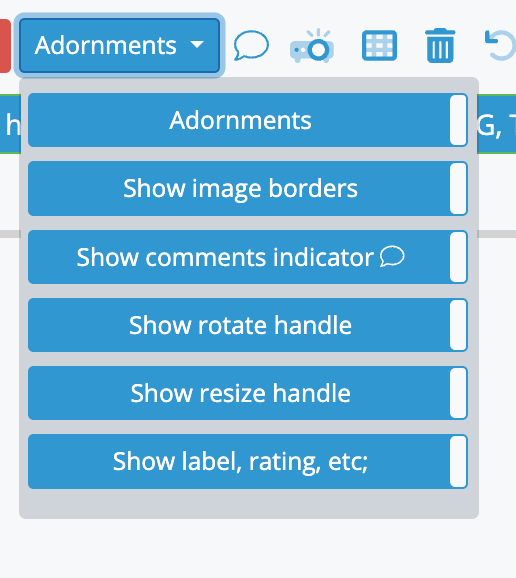
The six switches in the dropdown - "Adornments", "Show image borders", "Show comments indicator", etc control which adornments you see.
-
"Always show adornments":
Setting this switch to the "on" (blue) position will show the adornments all the time. Setting it to "off" (red) will show them only when the mouse is over an item. -
Show Image Borders:
When "Snap to Grid" is on (see above) there's a border around each image to make it fit the grid size. Turning this switch "on" (blue) will show the border, and "off" (red) will not. Note that if the image has a label set ('red', 'orange', etc), the border will be the label color. -
Show comments indicator:
If this is "on", the little comments bubble will show in the upper left hand corner. -
Show rotate handle:
If this is "on" the square rotate handle above the image will show. -
Show resize handle:
If this is "on" the square resize handle will be shown on the lower right-hand side of the image. -
Show label, rating, etc:
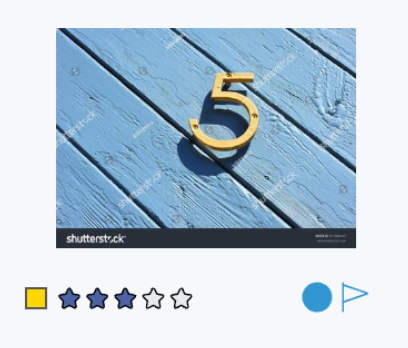
When this is "on" the label, rating, collection indicator, and flagged indicator shows at the bottom of the image.
Interface Management:When all the adornment switches are on, your StudioWall will be very busy since there are lots of controls. On the other hand, maybe you're only interested in the image's label, etc.You could set the switches like this:
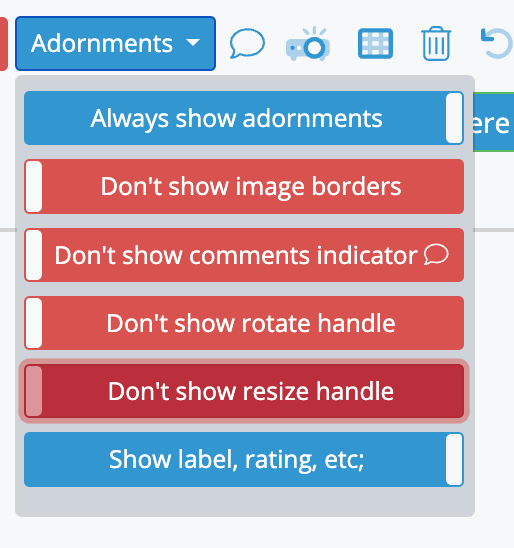
Now you can see the image is quite a bit tidier, yet it still conveys quite a bit of information.
-
"Always show adornments":
What's Next?
Next to the sliders, the studio wall toolbar offers a variety of buttons. We'll look at those next.